

Speak To An Expert
Get clear, personalised advice for your situation.
Jot down a few questions to make the most of your conversation.
More Items From Ergsy search
-

Can I customize motion detection on my Ring Doorbell Camera?
Relevance: 100%
-
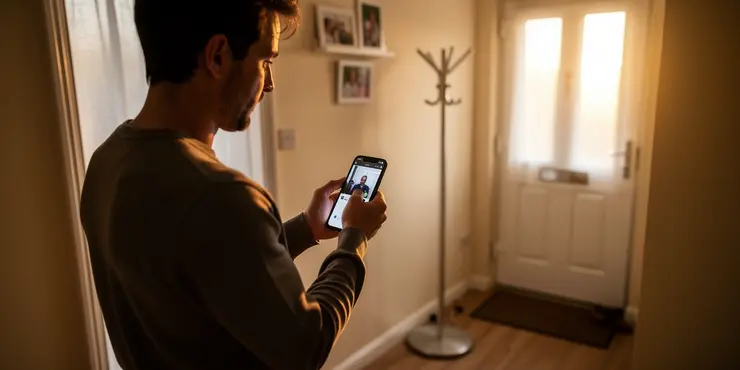
What kind of notifications do Ring Doorbell Cameras provide?
Relevance: 81%
-
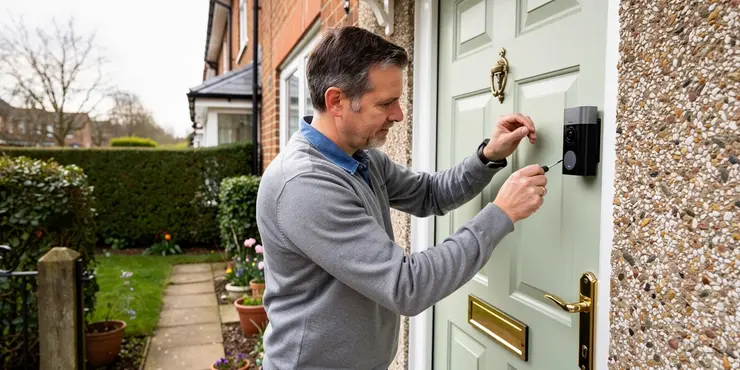
How do Ring Doorbell Cameras work?
Relevance: 80%
-
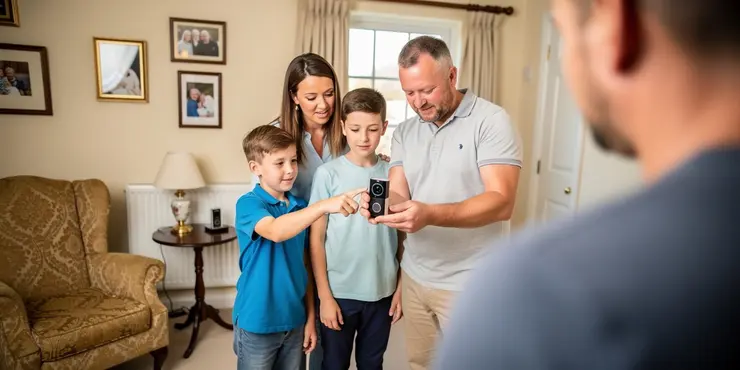
How does a Ring Doorbell Camera work?
Relevance: 79%
-

What is a Ring Doorbell Camera?
Relevance: 79%
-
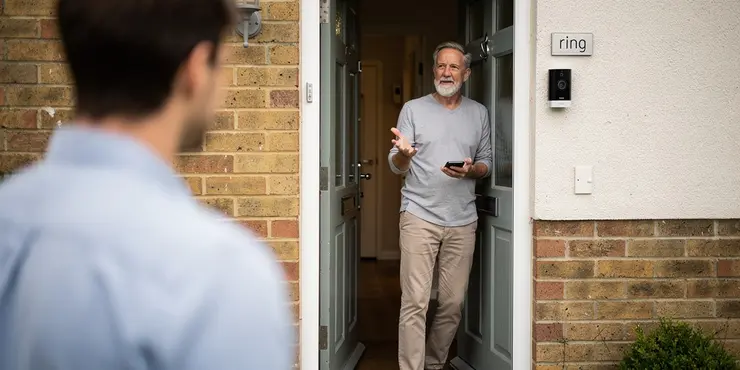
How does a battery-powered Ring Doorbell Camera work?
Relevance: 76%
-

Does a Ring Doorbell Camera work at night?
Relevance: 74%
-

Is the Ring app necessary for using a Ring Doorbell Camera?
Relevance: 73%
-
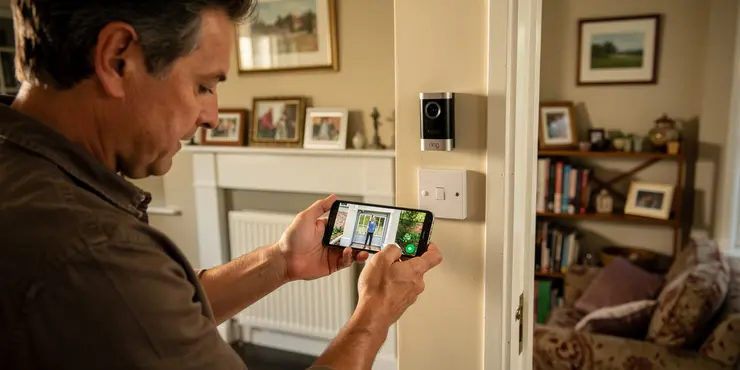
Can a Ring Doorbell Camera record continuously?
Relevance: 73%
-

Is the video quality of a Ring Doorbell Camera good?
Relevance: 72%

-
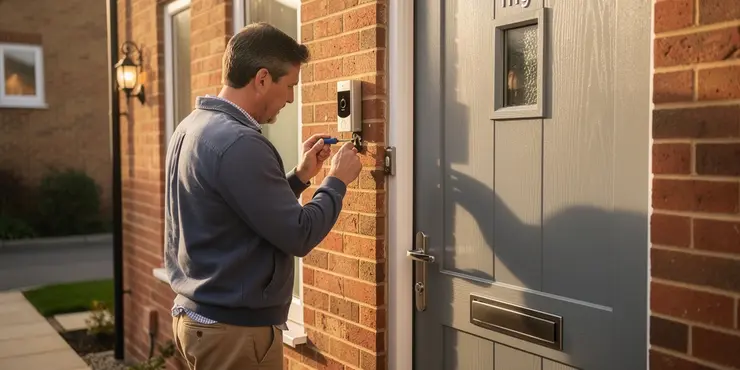
How do I install a Ring Doorbell Camera?
Relevance: 70%
-

Do Ring Doorbell Cameras support Alexa integration?
Relevance: 68%
-

How secure is the Ring Doorbell Camera system?
Relevance: 66%
-
Can I use a Ring Doorbell Camera without a subscription?
Relevance: 59%
-
What happens if my Ring Doorbell Camera is stolen?
Relevance: 58%
-
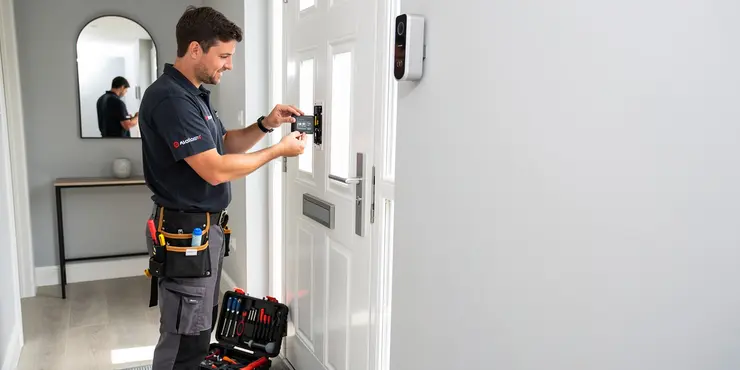
How do I recharge the battery on a Ring Doorbell Camera?
Relevance: 54%
-

Are wired Ring Doorbell Cameras better than battery-powered ones?
Relevance: 53%
-
Do I need Wi-Fi for a Ring Doorbell Camera?
Relevance: 33%
-

Can I talk to visitors using a Ring Doorbell Camera?
Relevance: 32%
-
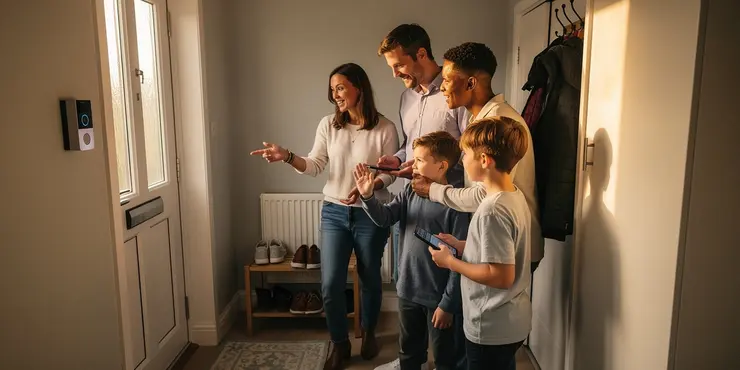
Can multiple users access the same Ring Doorbell Camera?
Relevance: 31%
-
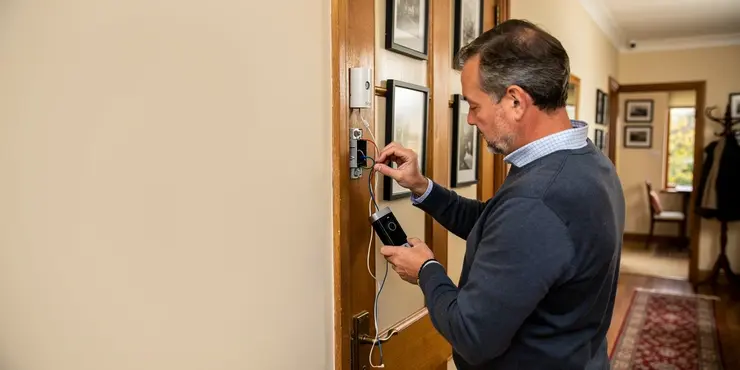
Can I use a Ring Doorbell Camera with existing doorbell wires?
Relevance: 31%
-

Can technology help in blocking the camera's view?
Relevance: 29%
-

Is redirecting a security camera a solution?
Relevance: 26%
-

Can I install my own camera to monitor the area in question?
Relevance: 25%
-
How is dangerous driving detected by police?
Relevance: 25%
-
Can I ask my neighbour to reposition their security camera?
Relevance: 22%
-
Is my concern valid if the camera is only monitoring my driveway?
Relevance: 21%
-
How can I tell if a security camera is pointing at my property?
Relevance: 21%
-

In what ways can pre-trial motions affect the time it takes for a case to come to court?
Relevance: 20%
-

What if my neighbor claims the camera is for security but it points towards my property?
Relevance: 19%
-

How do water companies detect leaks?
Relevance: 19%
-

Is ringing in the ears and tinnitus the same thing?
Relevance: 18%
-

Is ringing ion the ears and tinnitus the same thing?
Relevance: 18%
-

Is it advisable to discuss camera placement before it becomes an issue?
Relevance: 18%
-

How can I verify the camera's field of view?
Relevance: 18%
-

Are there privacy laws that protect me from neighbor's cameras?
Relevance: 18%
-
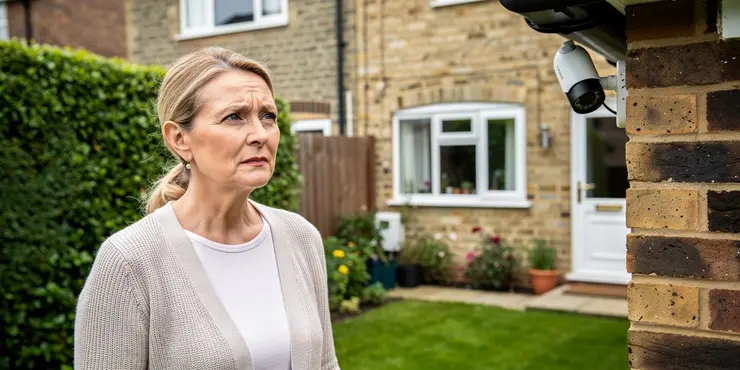
What can I do about my neighbour's security camera?
Relevance: 18%
-
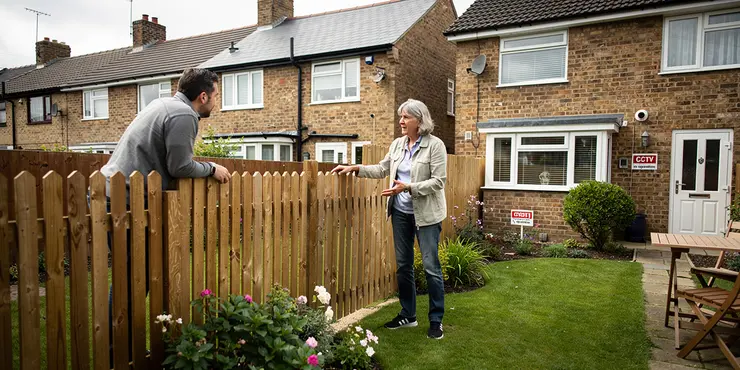
Is it legal for me to block the view of my neighbour's security camera?
Relevance: 18%
-

Can I block the view of my neighbor's camera with physical barriers?
Relevance: 18%
-

Can my neighbour legally point a security camera at my property?
Relevance: 17%
Understanding Motion Detection on Ring Doorbell Cameras
Customizing motion detection is an essential feature for homeowners in the UK who use Ring Doorbell Cameras. These devices are designed to enhance security and provide peace of mind by alerting users to any movements detected in their vicinity. By fine-tuning motion settings, you can ensure that you receive relevant notifications, reducing unnecessary alerts triggered by non-threatening movements.
How to Access Motion Detection Settings
To customize motion detection on your Ring Doorbell Camera, start by opening the Ring app on your smartphone or tablet. After logging into your account, select the specific Ring Doorbell device you wish to configure. Once you have accessed the device settings, you will find the motion settings option where you can adjust the sensitivity and frequency of alerts.
Customizing Motion Zones
Ring Doorbell Cameras allow you to define specific motion zones within the camera's field of view. These are regions where the camera will actively look for activity and send notifications if movement is detected. You can create, edit, and remove these zones according to your requirements. This feature is particularly advantageous if you want to exclude areas like busy streets or neighbour’s property from triggering alerts. Tailoring these zones ensures that your notifications are pertinent and minimizes disruptions.
Adjusting Motion Sensitivity
Another critical aspect of customizing motion detection is adjusting the sensitivity of the camera. Ring doorbell users in the UK can modify this setting to determine how much movement is necessary to trigger an alert. If your camera is positioned near a road with frequent traffic, you may want to decrease the sensitivity to avoid constant notifications. Conversely, increasing sensitivity might be beneficial for areas with less movement where you would prefer to be alerted to even the slightest activity.
Setting Motion Schedules
Ring also offers the ability to set motion schedules, allowing users to designate specific times when they want the motion detection feature to be active. This is particularly useful for homeowners who do not require alerts during certain parts of the day, such as when they are home. By scheduling when motion alerts are active, users can achieve a balance between security and convenience.
Utilizing Advanced Motion Detection Features
In addition to the basic options, newer models of Ring Doorbell Cameras provide advanced features such as People Only Mode, which minimizes alerts triggered by vehicles and animals, and Smart Alerts, which provide snapshot notifications. These features provide UK homeowners with even more control over how their motion detection systems function, ensuring a more personalized security setup.
Conclusion
Customizing motion detection on your Ring Doorbell Camera is an intuitive process that empowers you to manage and tailor your security alerts. By adjusting motion zones, sensitivity, and schedules, you can ensure that you receive pertinent notifications that enhance your home’s security without overwhelming you with unnecessary alerts. This customization capability is invaluable for maintaining an efficient and responsive home security system in the UK.
Understanding Motion Detection on Ring Doorbell Cameras
Using motion detection on your Ring Doorbell Camera can help keep your home safe. It lets you know when something moves near your home. This way, you only get important alerts and not too many messages about things that don't matter.
How to Access Motion Detection Settings
To change how motion detection works on your Ring Doorbell Camera, you need to use the Ring app on your phone or tablet. Log in and choose the Ring Doorbell you want to change. Then, find the motion settings to change how sensitive the alerts are.
Customizing Motion Zones
You can set up special areas for your camera to watch, called motion zones. These zones help the camera know where to look for movement. This means you won't get alerts for busy areas like the street or a neighbor's yard, unless you want them. This helps you get alerts that matter to you.
Adjusting Motion Sensitivity
You can change how sensitive your Ring Doorbell is to movement. If your doorbell is near a busy road, you might want to make it less sensitive so it doesn't alert you all the time. But if you live in a quiet place, you might want it to be more sensitive to notice even small movements.
Setting Motion Schedules
You can choose times for when the motion detection is on. This means you won't get alerts during times when you’re at home and don't need them. This lets you balance between being safe and not getting too many alerts.
Utilizing Advanced Motion Detection Features
Some Ring Doorbell Cameras have extra features like People Only Mode, which avoids alerts from cars or animals. There are also Smart Alerts for quick updates. These help you make your camera work just the way you need.
Conclusion
Changing the motion detection settings on your Ring Doorbell Camera helps you get alerts that are important for your safety. By setting up zones, sensitivity, and schedules, you can protect your home without too many unnecessary alerts. This way, your home stays safe and you stay informed.
Frequently Asked Questions
What is motion detection customization on the Ring Doorbell Camera?
Motion detection customization allows you to adjust settings to tailor how your Ring Doorbell detects motion, including adjusting sensitivity, motion zones, and notifications.
How do I customize motion settings on my Ring Doorbell?
You can customize motion settings through the Ring app by selecting your device and navigating to the motion settings section.
Can I adjust the sensitivity of motion detection?
Yes, you can adjust the motion sensitivity in the Ring app to make your doorbell more or less responsive to motion.
What are motion zones?
Motion zones are specific areas that you can define to monitor for motion, allowing you to ignore areas you don't want to monitor.
Can I exclude parts of the camera view from motion detection?
Yes, by setting up motion zones, you can exclude specific areas within the camera's field of view from triggering motion alerts.
Do all Ring Doorbell models support customizable motion detection?
Most modern Ring Doorbell models support customizable motion detection, but it's always good to check your specific model capabilities in the manual or app.
Can I schedule motion detection to activate only during specific times?
Yes, the Ring app allows you to set a schedule for when motion detection should be active or inactive.
Does customizing motion detection affect battery life?
Yes, higher sensitivity and more frequent motion detection can lead to reduced battery life. Adjust settings accordingly to balance performance and battery usage.
How do motion alerts work with customized settings?
Motion alerts are sent based on your customized settings. You can adjust both frequency and types of notifications you receive.
Can I use people-only mode with my Ring Doorbell Camera?
Yes, if your Ring Doorbell supports it, you can enable people-only mode to receive alerts only for people, not for other kinds of motion.
Is it possible to configure notifications for different types of motion?
Yes, the Ring app allows you to customize notifications based on different motion events and types.
Can I turn off motion detection on my Ring Doorbell Camera?
Yes, you can disable motion detection entirely through the Ring app if you do not want any motion alerts.
How can I improve motion detection accuracy on my Ring Doorbell?
Improving accuracy can be done by adjusting motion sensitivity, setting up specific motion zones, and using features like people-only mode.
Does Ring Doorbell support different motion detection settings for day and night?
While there are no distinct day and night settings, you can manually adjust sensitivity or use scheduling to handle different conditions.
What happens if I set the motion sensitivity to the highest level?
Setting the sensitivity to the highest level will result in more frequent alerts, potentially even for minor movements or passing shadows.
Can I receive motion alerts on multiple devices?
Yes, you can set up alerts to be sent to multiple devices as long as they are connected to the same Ring account.
How do I reset motion settings to default on my Ring Doorbell?
You can reset to default settings through the Ring app by accessing the motion settings and choosing the reset option.
Will customizing motion detection affect video recording?
Customizing motion settings affects when the camera records and sends alerts, but recorded videos will still capture all motion events.
What is the advantage of setting up motion zones?
Motion zones allow you to focus detection on important areas while ignoring irrelevant sections, reducing unnecessary alerts.
Can weather conditions affect my motion detection settings?
Yes, changing weather conditions like wind or rain can impact motion detection, so you may need to adjust sensitivity accordingly.
What is Motion Detection on the Ring Doorbell Camera?
The Ring Doorbell Camera can see when things move. This is called motion detection. You can change how it works to make it right for you. You can tell it where to look for moving things and when to tell you. This helps you only get alerts that are important.
Tools to help:
- Use pictures to show how to change settings.
- Watch videos to see how it works.
- Ask someone to help you set it up.
Motion detection settings help you change how your Ring Doorbell sees movement. You can change how sensitive it is, choose areas to watch, and set up alerts.
How can I change the movement settings on my Ring Doorbell?
Do you want your Ring Doorbell to notice different movements? You can change the settings to do this.
Here is how you can change them:
- Open the Ring app on your phone or tablet.
- Click on your Ring Doorbell.
- Find and tap on "Motion Settings."
- Follow the steps to change how your doorbell notices movements.
Help tools:
- Ask someone to help if you find it tricky.
- Use a screen reader to hear the steps.
You can change how your Ring device senses movement by using the Ring app. Open the app, find your device, and go to the part where it talks about motion settings.
Can I change how much movement the device notices?
Yes, you can change how your Ring doorbell notices movement. Use the Ring app to make it more or less sensitive.
What are motion zones?
Motion zones are areas where a camera can see and notice movement. When something moves in these areas, the camera can send a message or start recording. This helps you know when someone or something is moving near your home or business.
Tip: You can use pictures or videos to show where the motion zones are. This makes it easier to see how they work.
Motion zones are special parts of a screen that you choose to watch for movement. You can set them up so you don’t see places you don’t want to watch.
Can I stop the camera from noticing movement in some areas?
You can set up places where the camera won't look for movement. This way, those spots won't make the camera send alerts about motion.
Can you change the motion settings on every Ring Doorbell?
Most new Ring Doorbell cameras can be changed to spot different kinds of movement. But you should look at your doorbell's booklet or app to see what it can do.
Can I set up motion detection to work at certain times?
Yes! You can make motion detection work only at certain times. Here is how you can do it: - Check the settings on your device. - Find the schedule or timer option. - Choose the start and end times for motion detection. Helpful tips: - Use a calendar to keep track of times. - Ask someone to help if you find it tricky. - Look for online videos that show how to do it.Yes, you can use the Ring app to choose when it should watch for movement or not.
Will changing motion settings use more battery?
Yes, if the device is very sensitive and checks for movement all the time, the battery might not last as long. Change the settings so it works well but doesn't use too much battery.
How do motion alerts work with your own settings?
Motion alerts tell you when something moves in front of your camera.
You can change how these alerts work to make them right for you.
Here’s how:
- Open the app on your phone or device.
- Go to settings.
- Choose 'motion alerts'.
- Change the settings to what you like.
If you need help, you can ask someone or watch a video guide.
Motion alerts are messages you get when something moves. You can choose how often you get these messages and what kind of messages you want.
Can I use people-only mode with my Ring Doorbell Camera?
Yes, you can use people-only mode with your Ring Doorbell Camera. This means the camera tries to only alert you when it sees people. It may not notice other things like cars or animals. This can help cut down on the number of alerts you get. To use this feature, you might need to change some settings in your app. You can find help in the app or look up a guide online for step-by-step instructions.
Tools to help:
- Ring Doorbell App: Change settings here.
- Online Guides: Look for videos or articles that show you how.
- Customer Support: Ask if you need more help.
Yes, if your Ring Doorbell has this feature, you can turn on people-only mode. This way, you will get alerts only when a person is there, not for other movements.
Can you set up alerts for different kinds of movement?
You can set alerts for different movements. Here’s how:
- Find the settings on your device or app.
- Look for a section about notifications or alerts.
- Choose the type of movement you want alerts for.
Try using a helper like a voice assistant to guide you through the steps. Ask a friend or family member if you need help.
Yes, the Ring app lets you change notifications for different kinds of movement.
Can I stop the motion sensor on my Ring Doorbell Camera?
You can stop the motion sensor. The motion sensor notices when something moves.
Try this:
- Open the Ring app on your phone or tablet.
- Tap your Doorbell Camera.
- Look for "Motion Settings" and tap it.
- Turn off the switch that says "Motion Detection."
If you need help, ask someone or watch a video guide.
Yes, you can turn off motion detection in the Ring app if you don't want motion alerts.
How can I make my Ring Doorbell better at seeing movement?
Here are some easy steps to help your Ring Doorbell see movement better.
1. Change the Motion Settings
Look at the motion settings in the Ring app. Try to adjust them to find what works best for you.
2. Move the Doorbell
If your doorbell is not seeing movement well, try moving it. Sometimes a better spot helps.
3. Check for Updates
Make sure your Ring app and doorbell have the latest updates. Updates can help them work better.
4. Avoid Obstacles
Make sure there are no big things in front of your doorbell. This could stop it from seeing movement well.
If these steps don't work, ask someone for help.
Use a note book to write down what you change. This can help you remember what works best.
You can make things work better by doing these things:
1. Change how much movement the sensor picks up.
2. Choose special areas where it looks for movement.
3. Use features that only notice when a person is there.
Can a Ring Doorbell have different settings for day and night?
Ring Doorbell lets you change how it sees motion during the day and night. This means it can tell if someone is there, even when it is dark.
To help, you can use simple tools:
- Turn on night mode: This helps the doorbell see better at night.
- Adjust sensitivity: Make it more or less sensitive to motion.
- Set up alerts: You can get messages if the doorbell sees someone.
If you need more help, ask someone to walk you through the steps.
There are no special settings for day and night, but you can change the sensitivity yourself. You can also use a schedule to help with different times.
What will happen if I make the motion sensitivity very high?
Turning the sensitivity all the way up means you will get more alerts. Even small things, like tiny movements or shadows, might make the alarm go off.
Can I get alerts about movement on more than one device?
Yes, you can get alerts on more than one device if they are all on the same Ring account.
How can I change my Ring Doorbell settings back to the start?
To make things go back to normal on the Ring app, you can follow these steps:
1. Open the Ring app on your phone.
2. Look for the motion settings. This is where you change things about movement alerts.
3. Find the button that says "reset" and press it. This will make everything go back to the original settings.
If you need help, you can ask someone to help you or use a tool like a screen reader to help read out loud.
Can changing motion sensor settings change video recording?
Changing the motion settings changes when the camera turns on and when you get alerts. But the camera will still record everything that moves.
Why should you set up motion zones?
Motion zones help you see where movement happens. This can make your camera work better.
Here’s why motion zones are good:
- They help you get important alerts. You only get a message when movement happens in the areas you choose.
- Motion zones can save battery and data. The camera doesn’t record if nothing moves in your chosen areas.
Tip: To set up motion zones, look for help videos or guides that show you how. This can make it easier to understand.
Motion zones help you pay attention to important areas. This way, you can ignore other parts that don't matter. It helps stop alerts you don't need.
If you find reading hard, you can use tools like text-to-speech apps that read out loud, or highlighters that make reading easier.
Can weather change how my motion sensor works?
Yes, weather like wind or rain can affect how well motion sensors work. You might need to change the sensor's settings to work better in different weather.

Useful Links
This website offers general information and is not a substitute for professional advice.
Always seek guidance from qualified professionals.
If you have any medical concerns or need urgent help, contact a healthcare professional or emergency services immediately.
Some of this content was generated with AI assistance. We've done our best to keep it accurate, helpful, and human-friendly.
- Ergsy carefully checks the information in the videos we provide here.
- Videos shown by Youtube after a video has completed, have NOT been reviewed by ERGSY.
- To view, click the arrow in centre of video.
- Most of the videos you find here will have subtitles and/or closed captions available.
- You may need to turn these on, and choose your preferred language.
- Go to the video you'd like to watch.
- If closed captions (CC) are available, settings will be visible on the bottom right of the video player.
- To turn on Captions, click settings.
- To turn off Captions, click settings again.
More Items From Ergsy search
-
Can I customize motion detection on my Ring Doorbell Camera?
Relevance: 100%
-
What kind of notifications do Ring Doorbell Cameras provide?
Relevance: 81%
-
How do Ring Doorbell Cameras work?
Relevance: 80%
-
How does a Ring Doorbell Camera work?
Relevance: 79%
-
What is a Ring Doorbell Camera?
Relevance: 79%
-
How does a battery-powered Ring Doorbell Camera work?
Relevance: 76%
-
Does a Ring Doorbell Camera work at night?
Relevance: 74%
-
Is the Ring app necessary for using a Ring Doorbell Camera?
Relevance: 73%
-
Can a Ring Doorbell Camera record continuously?
Relevance: 73%
-
Is the video quality of a Ring Doorbell Camera good?
Relevance: 72%
-
How do I install a Ring Doorbell Camera?
Relevance: 70%
-
Do Ring Doorbell Cameras support Alexa integration?
Relevance: 68%
-
How secure is the Ring Doorbell Camera system?
Relevance: 66%
-
Can I use a Ring Doorbell Camera without a subscription?
Relevance: 59%
-
What happens if my Ring Doorbell Camera is stolen?
Relevance: 58%
-
How do I recharge the battery on a Ring Doorbell Camera?
Relevance: 54%
-
Are wired Ring Doorbell Cameras better than battery-powered ones?
Relevance: 53%
-
Do I need Wi-Fi for a Ring Doorbell Camera?
Relevance: 33%
-
Can I talk to visitors using a Ring Doorbell Camera?
Relevance: 32%
-
Can multiple users access the same Ring Doorbell Camera?
Relevance: 31%
-
Can I use a Ring Doorbell Camera with existing doorbell wires?
Relevance: 31%
-
Can technology help in blocking the camera's view?
Relevance: 29%
-
Is redirecting a security camera a solution?
Relevance: 26%
-
Can I install my own camera to monitor the area in question?
Relevance: 25%
-
How is dangerous driving detected by police?
Relevance: 25%
-
Can I ask my neighbour to reposition their security camera?
Relevance: 22%
-
Is my concern valid if the camera is only monitoring my driveway?
Relevance: 21%
-
How can I tell if a security camera is pointing at my property?
Relevance: 21%
-
In what ways can pre-trial motions affect the time it takes for a case to come to court?
Relevance: 20%
-
What if my neighbor claims the camera is for security but it points towards my property?
Relevance: 19%
-
How do water companies detect leaks?
Relevance: 19%
-
Is ringing in the ears and tinnitus the same thing?
Relevance: 18%
-
Is ringing ion the ears and tinnitus the same thing?
Relevance: 18%
-
Is it advisable to discuss camera placement before it becomes an issue?
Relevance: 18%
-
How can I verify the camera's field of view?
Relevance: 18%
-
Are there privacy laws that protect me from neighbor's cameras?
Relevance: 18%
-
What can I do about my neighbour's security camera?
Relevance: 18%
-
Is it legal for me to block the view of my neighbour's security camera?
Relevance: 18%
-
Can I block the view of my neighbor's camera with physical barriers?
Relevance: 18%
-
Can my neighbour legally point a security camera at my property?
Relevance: 17%