
Get Answers
Introduction to Virtual Wards
Virtual wards are an innovative way to provide healthcare. They allow patients to receive care from home while staying connected to medical professionals. This model can be especially beneficial for managing chronic conditions or post-surgical recovery.
The concept is designed to reduce pressure on hospitals. It ensures that patients can remain under observation without occupying a physical bed. With the rise of healthcare technology, the virtual ward has become more accessible across the UK.
Access to Doctors
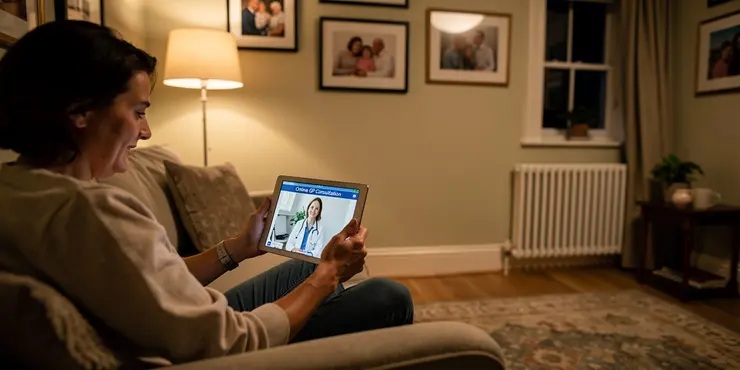
When enrolled in a virtual ward, you will continue to have regular access to doctors. Virtual wards use telemedicine platforms allowing video consultations. These consultations can be scheduled or on-demand, depending on your needs.
Doctors can evaluate symptoms, provide updates on your treatment plan, and prescribe medication. The use of digital health records facilitates smooth communication between you and your healthcare team.
Access to Nurses
Nurses play a crucial role in virtual wards. You will have access to nursing staff who monitor your condition remotely. They conduct regular check-ins to ensure your health is progressing as expected.
Nurses can also provide guidance on medication administration. They help manage day-to-day health concerns and alert doctors if required. This ensures that you have comprehensive support at all times.
Technology and Support
The success of virtual wards relies on advanced technology. This includes wearable devices and mobile apps to track vital signs. These tools transmit data to healthcare providers in real-time.
The NHS provides technical support to help you use these devices effectively. Training is offered to ensure you can navigate virtual consultations and health apps. This support is an integral part of the virtual ward experience.
Benefits and Considerations
Virtual wards offer increased flexibility and comfort for patients. By eliminating the need for hospital visits, they reduce the risk of infection. Additionally, you receive personalised care tailored to your home environment.
However, a stable internet connection is crucial for effective communication. It’s important to ensure that you have the necessary resources and support at home. Discuss with your healthcare provider to understand how best to set up a virtual ward.
Frequently Asked Questions
Yes, patients on a virtual ward have access to doctors through scheduled telehealth appointments and secure messaging platforms.
Absolutely, nurses are available to address your concerns through video calls, phone calls, or messaging.
The frequency of doctor visits depends on your treatment plan, but typically, you'll have regular virtual check-ins.
If you require immediate medical attention, contact emergency services. For urgent issues, notify your care team through the dedicated communication channel.
Virtual consultations can be very effective for monitoring and managing many health conditions, though certain exams may still require in-person visits.
You can schedule consultations using the virtual ward's scheduling platform or by contacting your care coordinator directly.
Nurse support may be available 24/7, depending on the virtual ward's setup. Check the exact availability with your care provider.
You may see the same healthcare providers you would in person, or they might be different. Your continuity of care remains a priority.
Yes, family members can join virtual consultations if you give permission, helping them stay informed about your care.
Virtual consultations are conducted through secure, encrypted platforms to ensure patient privacy and data security.
Yes, most virtual wards send automatic reminders via email, text, or app notifications to ensure you don't miss your appointments.
You'll need a device with internet access, such as a smartphone, tablet, or computer, equipped with a camera and microphone.
You can contact your care team through the virtual ward's communication app or by calling a dedicated helpline.
Many virtual wards allow you to message your doctor with non-urgent questions, which are usually answered within a specified timeframe.
Most virtual wards use widely accessible software or provide an app that you may need to download for seamless consultations.
Emergencies should be handled by contacting emergency services, though virtual instruments may help guide immediate next steps.
Contact technical support via the virtual ward's helpdesk for any issues related to accessing their platform.
Many virtual wards offer translation services to accommodate non-native speakers for effective communication.
Virtual ward services are typically designed to accommodate patients with various disabilities, ensuring accessibility for all.
Your doctor will provide detailed follow-up instructions and continue monitoring your condition through subsequent virtual visits.

Ergsy Search Results
This website offers general information and is not a substitute for professional advice.
Always seek guidance from qualified professionals.
If you have any medical concerns or need urgent help, contact a healthcare professional or emergency services immediately.
Some of this content was generated with AI assistance. We've done our best to keep it accurate, helpful, and human-friendly.
- Ergsy carefully checks the information in the videos we provide here.
- Videos shown by Youtube after a video has completed, have NOT been reviewed by ERGSY.
- To view, click the arrow in centre of video.
- Most of the videos you find here will have subtitles and/or closed captions available.
- You may need to turn these on, and choose your preferred language.
- Go to the video you'd like to watch.
- If closed captions (CC) are available, settings will be visible on the bottom right of the video player.
- To turn on Captions, click settings.
- To turn off Captions, click settings again.